

Can a plain-English request make routine changes faster? This Vidmoat AI video editor review explores a browser-based tool that turns instructions into timeline edits. For example, you can ask it to “cut the silence, add captions, make it vertical,” then check the results.
Vidmoat runs in a browser and offers desktop apps for Windows and Mac, so you do not need to host the software yourself. Its listed features include filler-word and silence removal, background removal, auto-reframing, color grading, beat sync, and audio ducking.
This guide covers the workflow, key features, and plans. The free Hobby plan offers a way to start; paid plans begin at $19 per month. Public feedback remains limited: a third-party page says “No reviews yet.” We also note the listing for Buzz Innovations Ltd. That can help set expectations before you sign up.
Key Takeaways
- Describe changes in plain English, then inspect the timeline.
- Use tools for captions, cleanup, reframing, color, and sound.
- Work in a browser or choose a Windows or Mac app.
- Start with the free Hobby plan; paid options start at $19 monthly.
- Public user feedback is scarce, so weigh the listed details carefully.
Vidmoat AI video editor review: Is It Worth Trying in 2026?
Prompt-led editing may suit creators who want to speed up routine tasks without giving up control. The built-in agent applies requested changes to a real multitrack timeline, where users can inspect and adjust each result.
Quick verdict on prompt-based editing
Its listed capabilities include captions and removal tools for everyday cleanup and content prep. That may help creators who handle repeat workflows, though results still need a human check. The MCP server also supports more than 65 timeline commands, with Claude, Cursor, and other MCP clients named as options.
What to know before choosing Vidmoat
A free Hobby plan gives users a way to try the tool. Paid pricing starts at $19 per month, but available details do not confirm limits for each tier. Public feedback is another open question:
“No reviews yet.”
That third-party listing offers little evidence about long-term use, so weigh documented features separately from user feedback.
| What to assess | Available detail | What it means |
|---|---|---|
| Hands-on control | Editable multitrack timeline | Inspect and refine agent changes |
| Access and cost | Free Hobby; paid from $19 monthly | Check plan details before choosing |
| Outside feedback | Listing says “No reviews yet” | Independent user insight is limited |
What Is Vidmoat AI?
Think of Vidmoat as an online workspace for shaping footage. The service runs on hosted systems, so users do not need to set up or maintain their own server.
A hosted video editor for browser, Windows, and Mac
Open it in a browser or choose one of the desktop apps for Windows or Mac. Both apps offer another way to access the same editing service, without a self-hosted setup.
The built-in agent applies requested changes to your footage on a real multitrack timeline. That keeps the work visible, so you can inspect edits rather than trust an opaque process.
“A visible timeline keeps the work open to inspection.”
Listed features span captions, silence and filler-word removal, background cleanup, reframing, color tools, and sound controls. These describe the stated feature set, not verified measures of speed or output quality. The service also lists a free Hobby plan, but the available details do not spell out its limits.
The available information does not confirm a company registration or a relationship between the service and Buzz Innovations Ltd. Treat that name as unverified, not as proof of ownership or affiliation.
How Text-Prompt Video Editing Works
A short instruction can guide a series of practical changes. The key is to describe the result you want, then check each change before you export.
Describe the edit you want in plain English
Write a direct request, such as “cut the silence, add captions, make it vertical.” This tells Vidmoat what to change in your footage. You can ask for silence removal, speech captions, or a new frame shape. Clear text helps the agent understand your goal, but it does not guarantee a perfect result.
Let the agent carry out changes on your footage
The built-in agent applies the request on a real multi-track timeline. This makes the editing process visible, so you can inspect its work. Adjust any details by hand to keep control of the final cut, then render the finished file as an MP4.
This workflow edits clips you provide; it is not a clip generator for video generation from scratch. That distinction may help you decide whether its tools fit your content and workflows.
| Step | What happens | Your role |
|---|---|---|
| Prompt | Describe the changes in plain English | State the result you want |
| Apply | The agent updates the timeline | Review and refine the edits |
| Export | Render the result as an MP4 | Check the finished file |
Review and Refine Edits on a Real Multitrack Timeline
A visible timeline makes each change easier to inspect. Vidmoat places agent-made edits on separate tracks, so you can review the structure instead of accepting an unseen result. This gives a video editor workflow a clear point of human control.
You can adjust details by hand before finishing your work. For connected MCP workflows, Claude, Cursor, and other clients can preview rendered frames and use more than 65 timeline commands. These tools let you check how changes appear as you shape your footage.
Review the structure, refine the details, then render the finished file.
After review, render the timeline as an MP4. That stated output gives creators a defined next step for sharing their videos or adding them to other content. The real multi-track timeline supports visible, hands-on video editing, though the available details do not promise a set level of speed or precision.
- Inspect: See agent changes across tracks.
- Refine: Make manual adjustments as needed.
- Render: Export the finished file as an MP4.
| Stage | Available function | Creator’s role |
|---|---|---|
| Review | See changes on the timeline | Check the structure and frames |
| Refine | Use manual edits or MCP commands | Adjust details and retain control |
| Finish | Render an MP4 file | Inspect the output before sharing |
Captions, Silence, and Filler-Word Removal
Clear speech can make content easier to follow. Vidmoat lists captions, silence removal, and filler-word removal among its editing features. These tools may help creators prepare videos for social posts, tutorials, or other projects.
Streamline cleanup and add captions to videos
Use a prompt to add captions or trim quiet gaps and filler words. These options fit into a prompt-led workflow, but each recording has its own needs. A pause may add meaning, and a spoken phrase may matter to the story.
The product description gives no caption-accuracy score or count of supported languages. Treat feature availability as a starting point, not a promise of perfect results. Check the captions for errors, then listen to the audio and inspect each cut.
- Captions: Check names, terms, and punctuation.
- Silence cleanup: Keep pauses that support the message.
- Filler-word removal: Confirm that edits preserve the intended speech.
Careful review helps you decide which changes suit each video. That final check keeps automated removal from cutting a useful pause or phrase.
Background Removal, Auto-Reframing, and Color Grading
Vidmoat lists three tools for shaping a finished video: background removal, auto-reframing, and color grading with LUTs. The product description names these capabilities but gives no performance benchmarks.
Together, they may suit creators who want to adjust a scene, frame, and look in one editing workflow. Check each change on the timeline before you export.
Remove backgrounds without leaving the editor
Background removal is a listed feature within the editor. It gives you an option to alter or clear a scene’s background as part of your work. The available details do not confirm how it performs across different settings, so inspect the result with your own footage.
Reframe footage and apply color grading with LUTs
Auto-reframing offers a listed way to adapt framing during video editing. It may help when you prepare content for different layouts. Color grading with LUTs is also listed, giving you a way to adjust the visual tone of videos.
These features may work well together, but the source offers no measured results or promised look. Review the edits on the timeline, make any needed changes, and keep hands-on control of the final video.
Audio Tools for Music, Beat Sync, and Ducking
Good sound can make a cut feel more polished. Vidmoat lists beat sync and audio ducking among its features, offering ways to work with music and video sound. Beat sync may align edits to a track’s rhythm. Ducking is intended to lower the track when speech needs focus.
The product details do not name supported formats, timing controls, or measured results. Treat these audio options as tools to test, not guarantees that every change will happen on its own.
They serve a different purpose from color grading with LUTs. Grading changes the visual tone; audio tools shape the soundtrack. This split may help you judge whether the options fit interviews, tutorials, or social clips.
Try a short sample first. Listen for a clear mix and music that supports the message without taking over. Check the timeline and final sound before rendering an MP4. That quick check can show whether the workflow suits your video editing needs.
AI Agents, MCP, Telegram, and Workflow Integrations
These connections offer a few ways to route editing tasks. You can use the hosted video editor, send a clip through Telegram, or connect supported clients. Each route may suit different content workflows.
Connect Claude, Cursor, and other MCP clients
Claude, Cursor, and other MCP clients can connect through Vidmoat’s MCP server. Connected agents can import footage, apply more than 65 timeline commands, preview rendered frames, and render finished MP4s. That links automated work with an output you can inspect.
Send clips through Telegram or automate timeline commands
For a simple starting point, send a clip with a caption to @vidmoat_bot on Telegram. MCP access may fit teams that want to connect editing features to existing workflows. You can use these tools for video editing tasks, such as adding captions or adjusting a cut. They do not describe video generation from scratch.
“More than 65 timeline commands” gives connected agents a broad set of editing actions.
The supplied details describe MCP connectivity, not a separate API offering. They also do not confirm API access, so ask the company before planning around it. Consider which route fits your apps, access needs, and review steps.
Vidmoat AI Pricing: Free Hobby Plan and Paid Tiers
Choosing a service is easier when you can separate the stated cost from details that remain unclear. Vidmoat’s listed pricing offers a free starting point, while paid access begins at a set monthly rate.
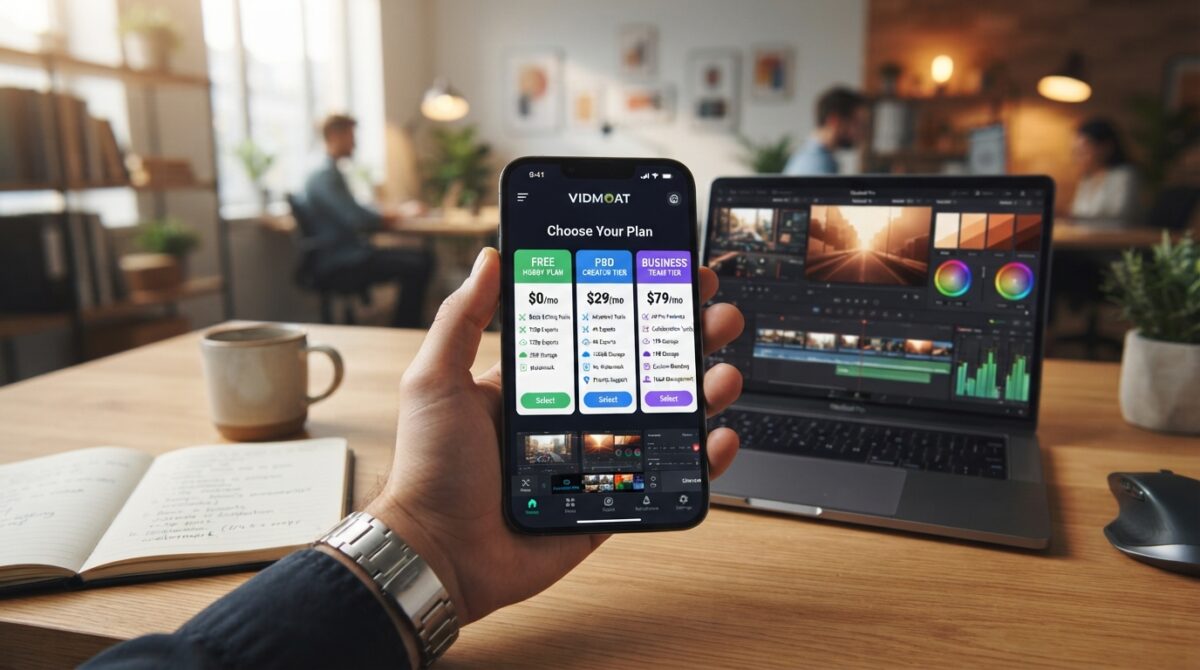
Compare free access with plans starting at $19 per month
The free Hobby plan lets users try the editor before paying. It may be a useful way to explore the listed features and see if they fit your content needs.
Paid plans start at $19 per month. The available details do not name each tier or explain its limits, billing terms, or enterprise options. They also do not state how many videos each plan supports.
“Start with what the listing confirms, not what it leaves open.”
Compare the free Hobby plan with the starting price, then check current terms before subscribing. The listed tools support video editing, but the information does not confirm video generation or describe a separate generator. Buzz Innovations Ltd. is not identified as the service’s owner or operator.
| Option | Confirmed detail | Not specified |
|---|---|---|
| Free Hobby plan | Free entry-level access | Usage limits |
| Paid plans | Start at $19 per month | Tier names and billing terms |
| Enterprise | No terms provided | Features and cost |
Pros of Vidmoat AI
Its main strengths are flexible access and a workflow that keeps people involved. The listed features may help creators handle common tasks, while the free Hobby plan offers a low-risk way to explore the service.
Prompt-led editing with hands-on timeline control
Users can describe a change in plain English, then inspect the result on a multitrack timeline. They can adjust cuts by hand, which keeps creative control in their hands. The feature list includes captions, silence and filler-word removal, background removal, auto-reframing, LUT-based grading, beat sync, and audio ducking. These options may support varied content needs, though they do not guarantee a set level of quality.
Multiple ways to access and automate editing workflows
Users can work through the web editor, Windows or Mac apps, Telegram, or an MCP client. That range may suit different setups and levels of automation. The free Hobby plan lets prospective customers test access before paid pricing, which starts at $19 per month.
- Useful tools for routine video editing tasks.
- Reviewable changes, with room for manual adjustments.
- Video editing rather than video generation from scratch.
These are potential strengths based on listed capabilities, not independently measured results.
Cons and Limitations to Consider
Every service has trade-offs, and a list of features does not show how well each task works in daily use. The main gaps here are independent evidence, plan details, and long-term feedback.
Public reviews and long-term user feedback are limited
A third-party page currently states:
“No reviews yet.”
That leaves users with little public evidence about reliability over time. The product description also gives no independent accuracy tests or performance benchmarks for captions or background removal.
- Paid pricing starts at $19 per month, but plan limits, subscription terms, and enterprise options are not detailed in the supplied information.
- Users should treat the listed features as claims to test, not proven results. The service focuses on footage you provide; it does not present an AI generator or make video generation a core function.
Before paying, compare the current offer with your needs and check the plan page for updated terms. A short trial can help you decide whether this tool fits your workflow.
Who Should Choose Vidmoat AI in 2026?
Choosing the right tool depends on how you work and what your projects need. Vidmoat may fit creators who want simple control without giving up a chance to check each change.
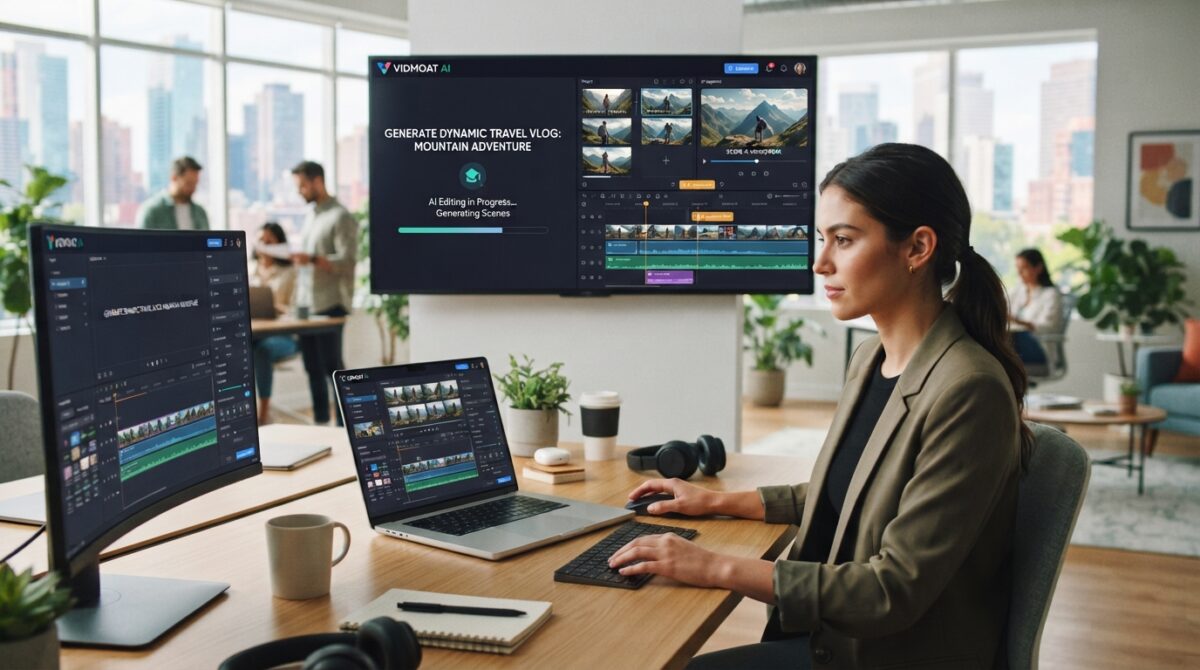
Match its capabilities to your daily work
You can request an edit in plain English, inspect the multitrack timeline, and render an MP4. The listed features include captions, cleanup, reframing, background removal, LUT-based grading, beat sync, and audio ducking. These options may help with regular video editing, but they do not mean the service offers video generation.
- Creators can compare the listed capabilities with their content needs, including the formats they use for videos.
- Browser, Windows, and Mac access, plus Telegram and MCP connections, give users several ways to fit the tool into their workflows.
- The free Hobby plan offers a starting point; paid access begins at $19 per month. Plan limits are not provided.
If you need documented long-term results, performance benchmarks, or detailed plan comparisons, those details remain unavailable. Try the free option first to see whether the editing process suits your work.
Conclusion
Vidmoat offers a hosted video editing workflow built around plain-English requests and a visible multitrack timeline. You can inspect each change, adjust it by hand, and render an MP4 instead of trusting an opaque result.
Its listed tools cover captions, silence and filler-word removal, auto-reframing, background removal, LUT-based grading, beat sync, and audio ducking. These options may support varied content needs, though the available details do not prove how well they perform.
The free Hobby plan gives you a place to start; paid plans begin at $19 per month, with usage limits still unspecified. Public feedback also remains scarce. Try a sample project and compare the workflow with your editing needs before choosing this tool for your video.
FAQ
What is Vidmoat AI?
Can I adjust prompt-based changes myself?
Can it remove silence and filler words or add captions?
Does it support background removal and color grading?
Can it generate video from a text prompt?
Can I connect MCP clients, Telegram, or an API?
How much does Vidmoat cost?
Is it suitable for enterprise teams?
Who makes the service?
There are no reviews yet. Be the first one to write one.